Advanced Features
Unlock the full potential of your QR codes with UTM tracking, A/B testing, scheduling, and conversion tracking.
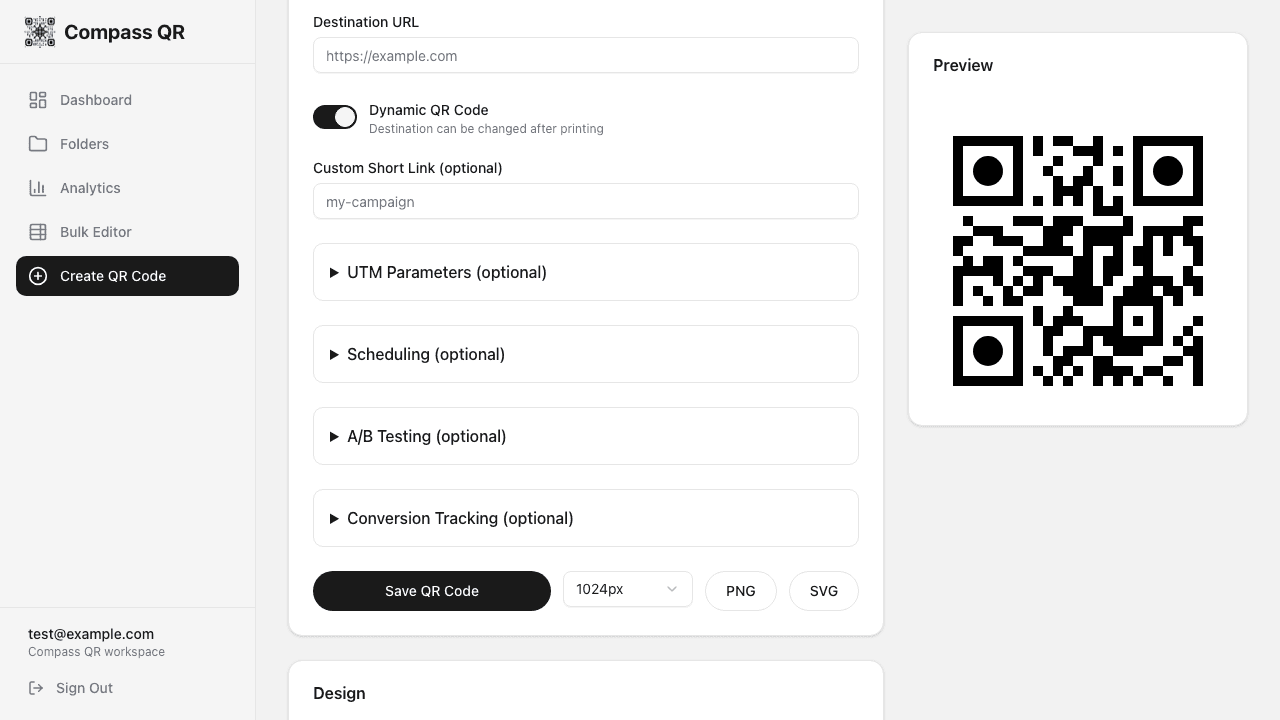
All advanced features require dynamic QR codes. Static QR codes cannot use these features.
UTM Parameters
UTM parameters help you track the performance of your QR code campaigns in analytics tools like Google Analytics.
Available Parameters
| Parameter | Purpose | Example |
|---|---|---|
| Source | Where traffic comes from | qr_code, poster |
| Medium | Marketing channel type | print, packaging |
| Campaign | Campaign name | summer_sale_2024 |
| Content | Differentiate similar content | menu_qr, table_tent |
| Term | Keywords (less common for QR) | special_offer |
How to Set UTM Parameters
- Create or edit a dynamic QR code
- Expand the UTM Parameters section
- Fill in the relevant fields
- Save your QR code
The parameters are automatically appended to your destination URL when users scan.
Best Practice
Use lowercase and underscores for UTM values. Keep naming consistent across campaigns for easier analysis.
Scheduling
Schedule QR codes to activate or expire at specific times, perfect for time-limited campaigns.
Active From
Set a future date and time when the QR code should become active. Until then:
- QR code shows "Scheduled" status
- Scans show a "Coming Soon" page
- The QR code activates automatically at the scheduled time
Expires At
Set an expiration date and time for time-limited campaigns. After expiration:
- QR code shows "Expired" status
- Scans show an "Expired" page
- You can extend or remove the expiration anytime
Use Cases
- Flash sales and limited-time offers
- Event-specific QR codes
- Coupon expiration dates
- Seasonal promotions
- Contest end dates
A/B Testing
Test different landing pages to see which performs better. Split traffic between multiple URLs and measure results.
How A/B Testing Works
- Your main destination URL serves as the control
- Add one or more variant URLs to test
- Assign traffic weights to each variant (e.g., 50%/50%)
- When users scan, they're randomly directed based on weights
- View results in analytics to see which performs best
Setting Up an A/B Test
- Create or edit a dynamic QR code
- Expand the A/B Testing section
- Enable A/B Testing
- Click Add Variant
- Enter a name, destination URL, and weight for each variant
- Save your QR code
Variant Configuration
- Name - Descriptive name (e.g., "Blue CTA Button")
- Destination URL - The alternate landing page
- Weight - Traffic percentage (1-100)
Run A/B tests for at least 2 weeks or until you have statistically significant results before declaring a winner.
Conversion Tracking
Track how many QR code scans lead to conversions on your website.
Setting Up Conversion Tracking
- Create or edit a dynamic QR code
- Expand the Conversion Tracking section
- Enable Conversion Tracking
- (Optional) Set a goal URL like
/thank-you - Save the QR code
- Copy the tracking script
- Add the script to your landing page
Tracking Script
Add this script to your landing page to track conversions:
<script src="https://yoursite.com/t/[QR_ID]"></script>
Tracking Methods
Automatic (Goal URL)
If you set a goal URL, conversions are tracked automatically when users reach that page.
Manual (JavaScript API)
For custom events, use the JavaScript API:
// Track a conversion
CompassQR.track('purchase', 99.99);

// Track with custom data
CompassQR.track('signup', 0, { plan: 'pro' });
Viewing Conversion Data
Conversion data appears in your QR code's analytics:
- Total conversions
- Conversion rate (conversions / scans)
- Revenue (if tracked)
- Conversion timeline
Custom Short Links
Create memorable short links for your QR codes instead of random characters.
Format
Custom slugs create URLs like:
https://compassqr.com/r/your-custom-slugRules
- Lowercase letters, numbers, and hyphens only
- Must be unique across all users
- Cannot match reserved words
- Availability is checked in real-time as you type