Creating QR Codes
A complete guide to creating and configuring QR codes in CompassQR.
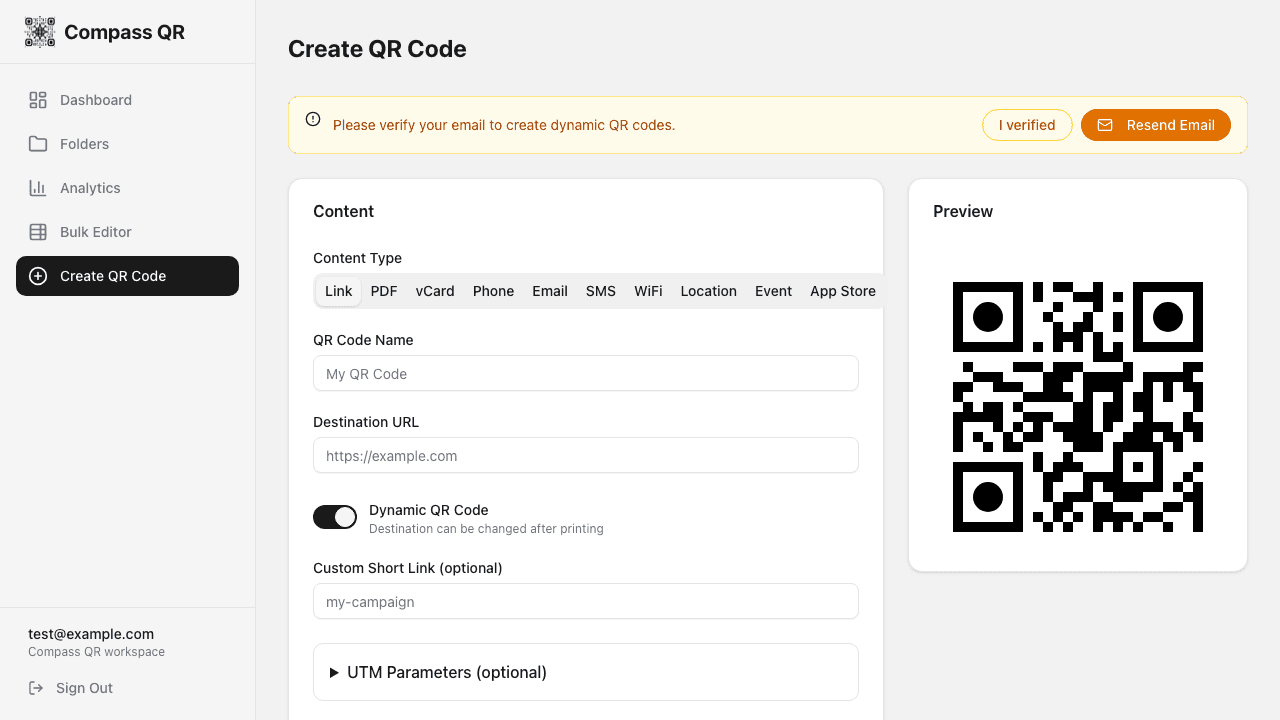
The QR Creator Interface
The QR code creator is divided into three main sections:
- Preview - Real-time preview of your QR code as you make changes
- Content - Configure the type and destination of your QR code
- Design - Customize colors, patterns, logos, and frames
Content Configuration
Content Type
Select the type of content your QR code will contain. Each type has specific fields:
| Type | Description | Fields |
|---|---|---|
| Link | Redirect to any URL | Destination URL |
| Link to a PDF document | PDF URL | |
| vCard | Share contact info | Name, phone, email, address, etc. |
| WiFi | Connect to WiFi network | SSID, password, encryption |
| Phone | Initiate a phone call | Phone number |
| Compose an email | Email, subject, body | |
| SMS | Send a text message | Phone number, message |
| Location | Open maps location | Address or coordinates |
| Event | Add calendar event | Title, date, time, location |
| App Store | Smart app download links | iOS URL, Android URL, fallback |
QR Code Name
Give your QR code a descriptive name to easily identify it in your dashboard. If you don't provide a name, one will be auto-generated based on the creation date.
Dynamic vs Static
Toggle Dynamic QR Code to enable:
- Changing the destination URL after printing
- Scan analytics and tracking
- Custom short links
- A/B testing and scheduling
Dynamic QR codes use a short redirect URL, so the QR pattern stays simple even for long URLs.
Custom Short Link
For dynamic QR codes, you can specify a custom slug for your short link. For example, entering summer-sale creates a link like:
https://yoursite.com/r/summer-saleSaving and Downloading
Save QR Code
Click Save QR Code to save your QR code to the database. For dynamic QR codes, this generates the short link that the QR code will encode.
Download Options
Download your QR code in two formats:
PNG
Raster format, ideal for digital use, social media, and standard printing. Choose from 512px to 3000px resolution.
SVG
Vector format, scales to any size without quality loss. Perfect for large format printing and professional use.
Download Size
For print materials, use at least 1024px or higher. For billboards and large signage, export SVG for infinite scalability.