Design Customization
Make your QR codes unique with custom colors, patterns, logos, and frames.
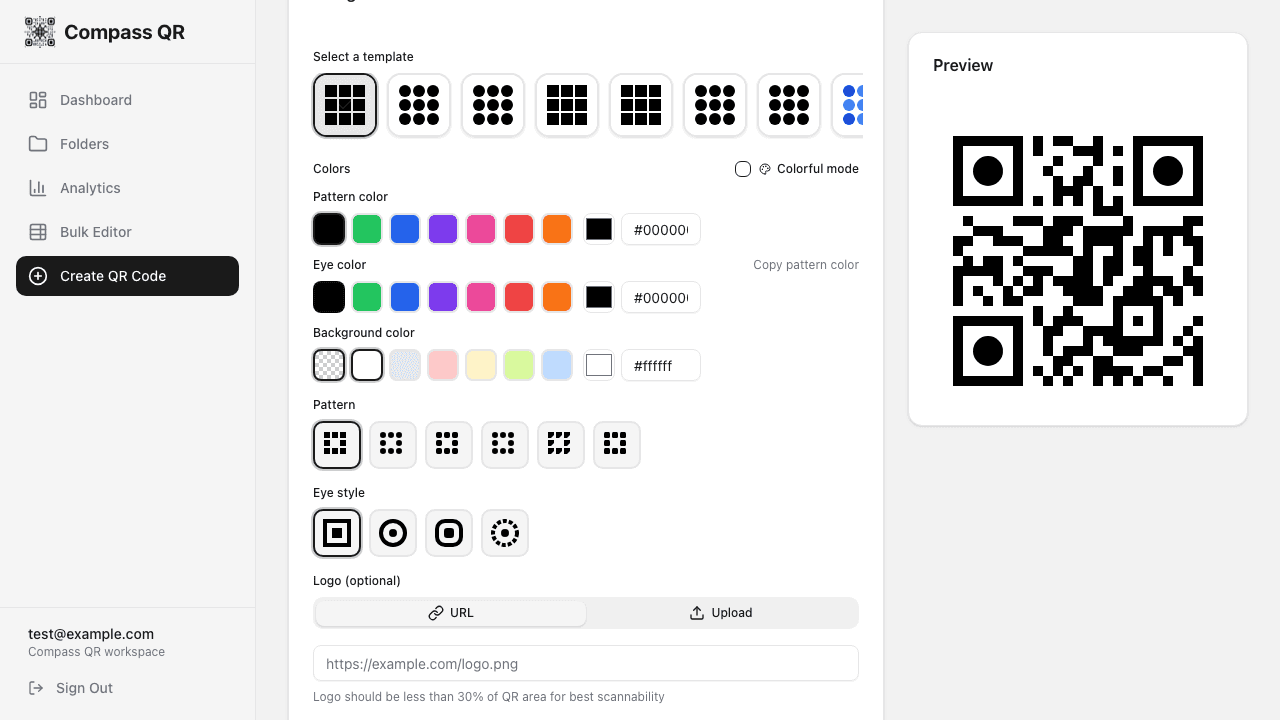
Templates
Start with a preset template for quick styling. Templates include pre-configured color schemes, patterns, and eye styles that work well together.
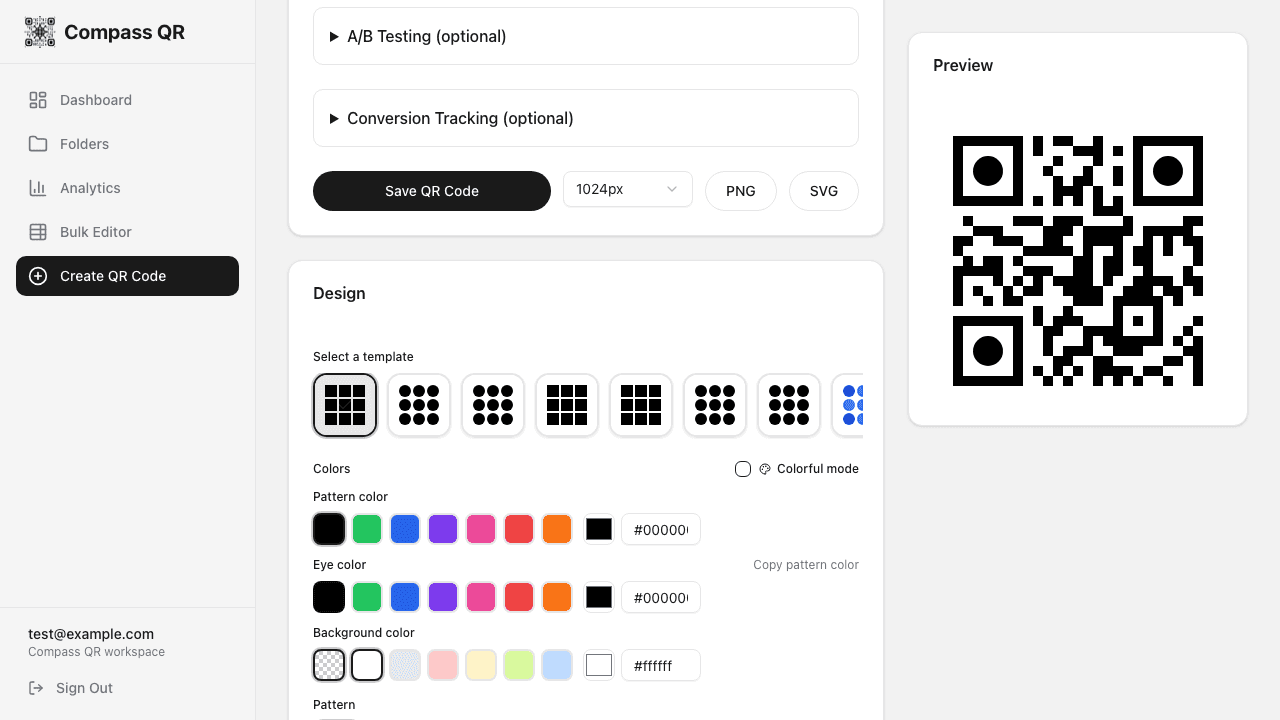
Click any template to apply it instantly. You can further customize after applying a template.
Colors
Solid Colors
Customize three color elements:
- Pattern Color - The main QR code dots (default: black)
- Eye Color - The three corner squares (can match pattern or be different)
- Background Color - The area behind the QR code (default: white)
Use the color swatches for quick selection or enter custom hex codes.
Colorful Mode (Gradients)
Enable Colorful mode to apply gradient colors to your QR code. Choose from 10 preset palettes:
Each palette can be customized:
- Add or remove color stops
- Adjust individual colors
- Change gradient angle (linear)
- Switch between linear and radial gradients
Scannability
Ensure sufficient contrast between the QR pattern and background. Dark patterns on light backgrounds work best.
Patterns
Choose from 6 dot pattern styles:
Square
Classic square dots
Dots
Circular dots
Rounded
Slightly rounded squares
Extra Rounded
More rounded squares
Classy
Stylized angular dots
Classy Rounded
Rounded classy style
Eye Styles
The "eyes" are the three large squares in the corners. Choose from 4 styles:
Square
Sharp corners
Dot
Circular design
Rounded
Soft corners
Dots
Dotted pattern
Logo
Add your brand logo to the center of the QR code. Two methods available:
URL
Enter a direct link to your logo image (PNG, JPG, or SVG).
Upload
Upload an image file directly from your device.
Logo Options
- Round Logo - Display logo in a circular shape
- Background - Add a solid background behind the logo
- Background Color - Choose the background color
- Background Shape - Square or circle
- Logo Size - Adjust from 15% to 40% of QR area
Logo Size
Keep logos under 30% of the QR area for reliable scanning. Larger logos may cause scan failures.
Frame & Shape
QR Shape
Choose the overall shape of your QR code:
- Square - Traditional rectangular QR code
- Circle - QR code with circular border
Frame Styles
Add a decorative frame around your QR code with optional text:
When a frame is selected, you can customize:
- Frame Text - Call-to-action text (e.g., "Scan Me!")
- Frame Color - Color of the frame and text
QR Settings
Error Correction Level
Error correction allows the QR code to be scanned even if partially damaged or obscured:
| Level | Recovery | Best For |
|---|---|---|
| Low (L) | ~7% | Simple QR codes, digital use |
| Medium (M) | ~15% | General purpose |
| Quartile (Q) | ~25% | QR codes with logos (default) |
| High (H) | ~30% | Heavy customization, large logos |
Higher error correction makes the QR denser but more resilient. Use Q or H when adding logos.
Quiet Zone (Margin)
The quiet zone is the white space around the QR code. A proper quiet zone ensures reliable scanning:
- Adjustable from 0 to 30 pixels
- Default is 10 pixels
- Minimum of 4 "modules" (dots) recommended for print