Bulk Editor
Edit multiple QR codes at once with a spreadsheet-style interface.
Overview
The Bulk Editor provides a powerful spreadsheet-like view for managing many QR codes efficiently. Access it from your dashboard sidebar.
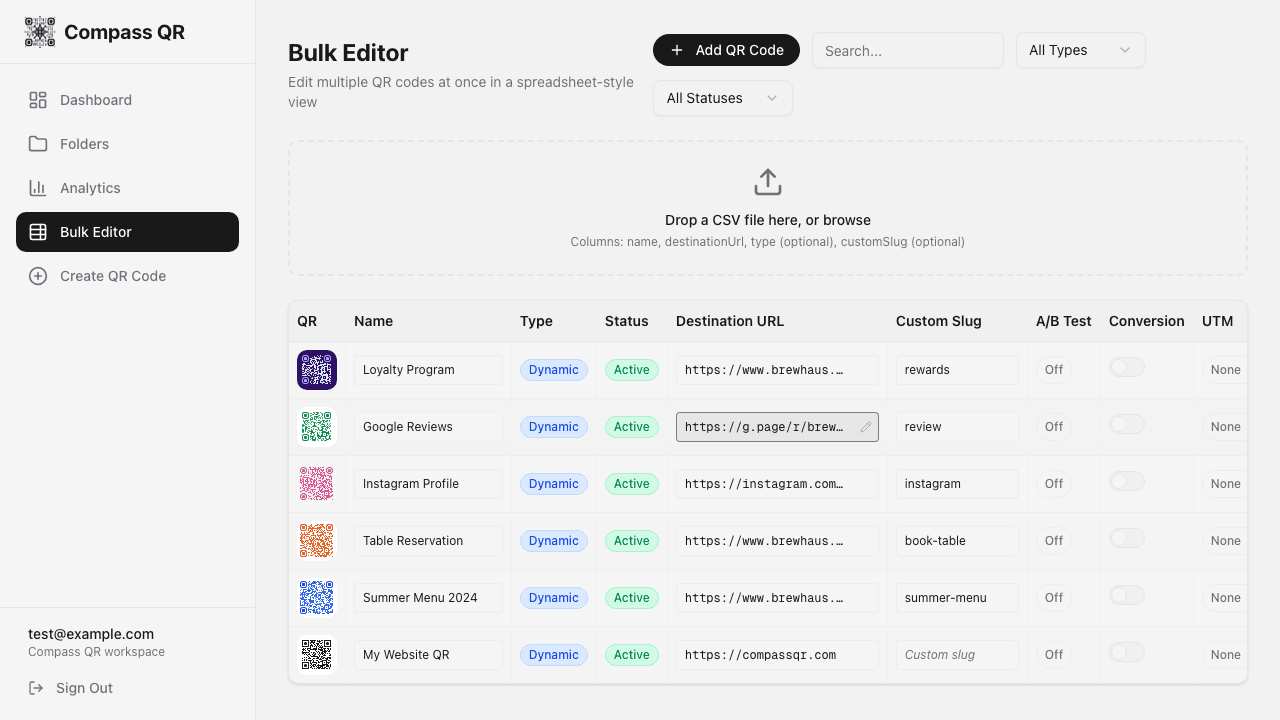
Table Columns
The bulk editor displays the following information for each QR code:
| Column | Description | Editable |
|---|---|---|
| QR | Preview thumbnail | No |
| Name | QR code name | Yes |
| Type | Dynamic or Static | No |
| Status | Active, Scheduled, Expired, Inactive | No |
| Destination URL | Where scans redirect | Yes (dynamic only) |
| Custom Slug | Short link identifier | Yes (dynamic only) |
| A/B Test | A/B testing configuration | Yes (dialog) |
| Conversion | Conversion tracking toggle | Yes |
| UTM | UTM parameters (expandable) | Yes |
| Created | Creation date | No |
Inline Editing
Click any editable cell to modify its value:
- Click on the cell you want to edit
- The cell becomes an input field
- Make your changes
- Press Enter or click the checkmark to save
- Press Escape or click X to cancel
Changes are saved immediately to the database.
Expandable Rows
UTM Parameters
Click the UTM button to expand and edit all five UTM parameters:
- Source
- Medium
- Campaign
- Content
- Term
A/B Test Variants
Click the A/B Test button to see all configured variants with their names, weights, and destination URLs.
Quick Create
Click Add QR Code to add a new row at the top of the table. Fill in:
- Name - Give your QR code a name
- Type - Choose Dynamic or Static
- Destination URL - Enter the target URL
- Custom Slug - Optional custom short link
Click the green checkmark to create the QR code, or X to cancel.
Quick Create uses default design settings. For custom styling, use the full QR Creator.
CSV Import
Import multiple QR codes at once from a CSV file. Drag and drop or click the upload zone at the top of the page.
CSV Format
Your CSV file should include these columns:
| Column | Required | Description |
|---|---|---|
| name | Yes | QR code name |
| destinationUrl | Yes | Target URL |
| type | No | "dynamic" or "static" (default: dynamic) |
| customSlug | No | Custom short link |
| utmSource | No | UTM source parameter |
| utmMedium | No | UTM medium parameter |
| utmCampaign | No | UTM campaign parameter |
| utmContent | No | UTM content parameter |
| utmTerm | No | UTM term parameter |
Example CSV
name,destinationUrl,type,customSlug,utmSource,utmMedium,utmCampaign
Homepage QR,https://example.com,dynamic,home,website,qr,spring2024
Product Page,https://example.com/product,dynamic,product,website,qr,spring2024
Contact Card,https://example.com/contact,static,,,
Import Process
- Upload your CSV file
- Preview the parsed data with validation status
- Fix any errors shown in red
- Click Import to create the QR codes
Imported QR codes use default design settings. Edit each code individually to customize the design.
Filtering and Pagination
Use the controls at the top to filter your QR codes:
- Search - Filter by name
- Type - All, Dynamic, or Static
- Status - All, Active, Scheduled, Expired, Inactive
The table displays 50 items per page with pagination controls at the bottom.
Actions
Hover over any row to reveal quick actions:
- Analytics - View scan statistics (dynamic only)
- Delete - Remove the QR code