Getting Started
Create your first QR code in under a minute.
1. Create an Account
To get started with CompassQR, you'll need to create a free account. This allows you to:
- Create and manage unlimited QR codes
- Access analytics and scan tracking
- Use dynamic QR codes that can be updated
- Organize QR codes into folders
You can sign up with your email or use Google sign-in for quick access.
2. Navigate to Create
After signing in, click the "Create QR Code" button in your dashboard or use the sidebar navigation.
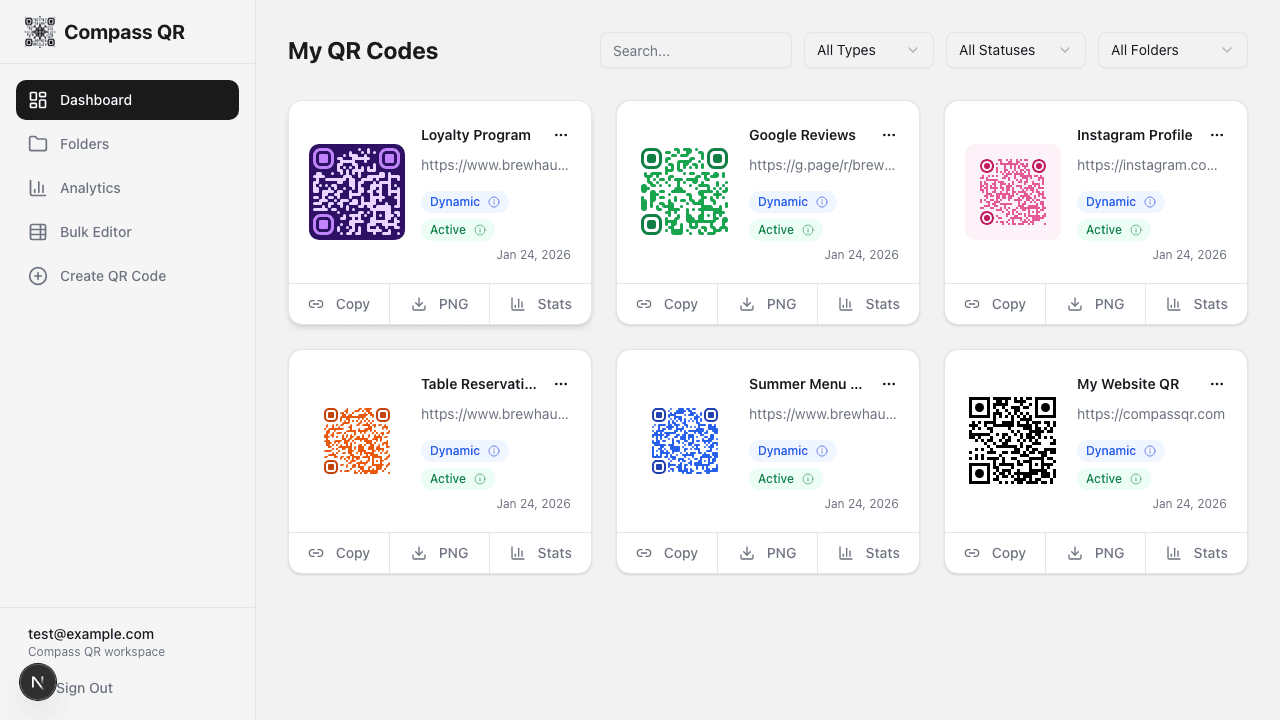
3. Choose Your Content Type
CompassQR supports 10 different content types. Select the type that matches what you want your QR code to do:
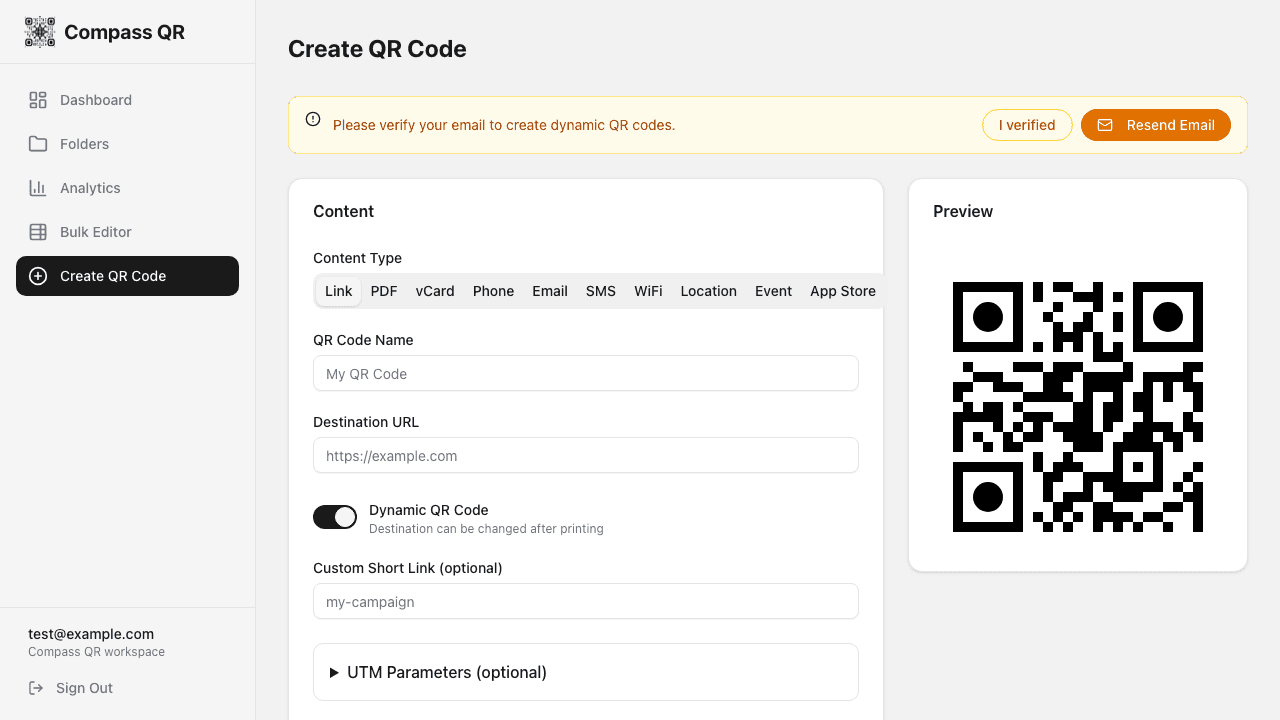
The most common type is Link, which redirects users to any URL when scanned.
4. Enter Your Destination
For a Link QR code, enter the destination URL (e.g., https://yourwebsite.com).
Dynamic vs Static
Keep Dynamic QR Code enabled to be able to change the destination later without reprinting. Learn more
5. Customize the Design
Scroll down to the Design panel to customize your QR code appearance:
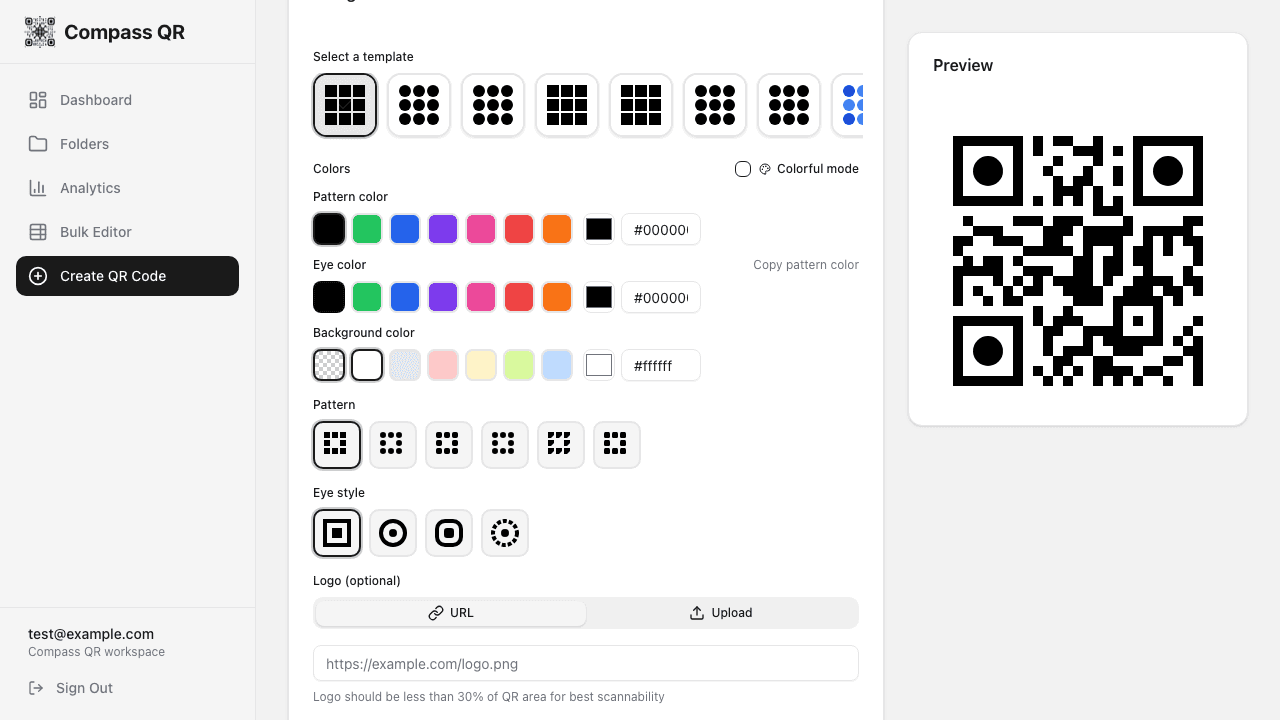
- Choose from preset templates
- Pick custom colors or enable colorful gradient mode
- Select pattern and eye styles
- Add your logo (URL or upload)
- Add a frame with custom text
6. Save and Download
Click Save QR Code to save it to your dashboard. Then download as:
- PNG - Best for digital use and printing
- SVG - Vector format, scales to any size
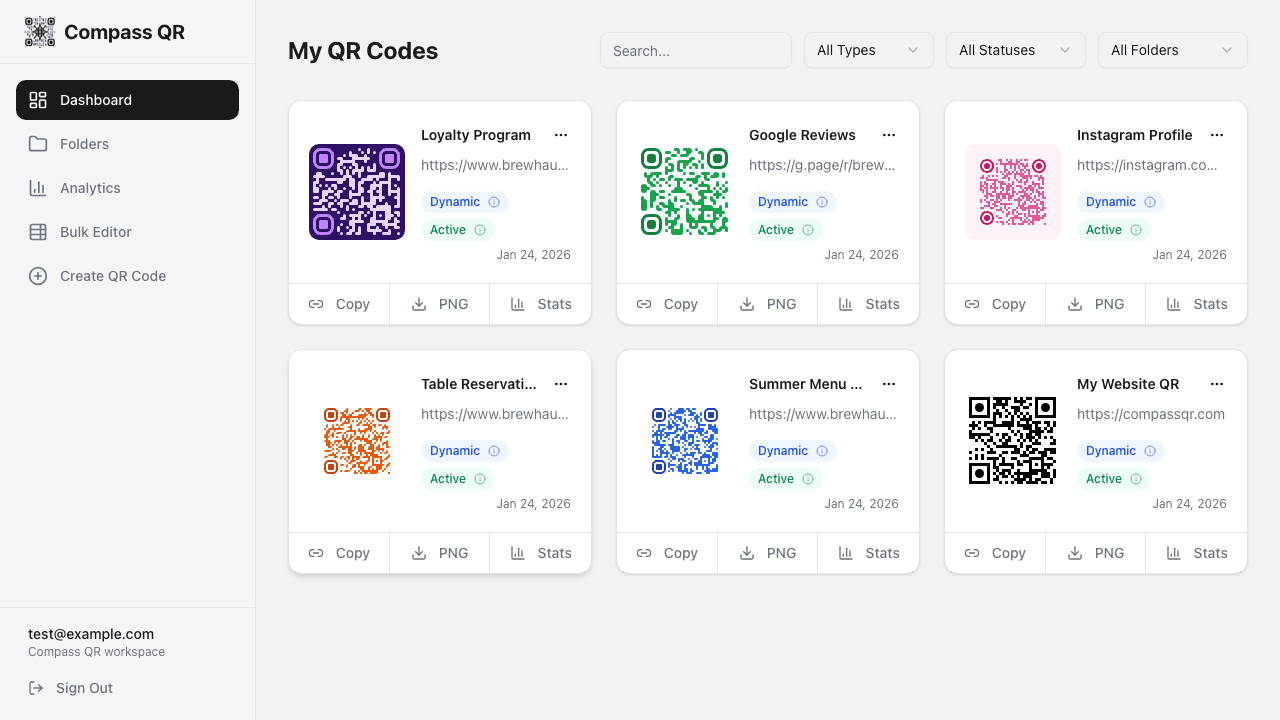
Choose from multiple resolution options (512px to 3000px) for your download.