Folders
Organize your QR codes into folders for better management.
Overview
Folders help you organize QR codes by project, campaign, location, or any other criteria that makes sense for your workflow.
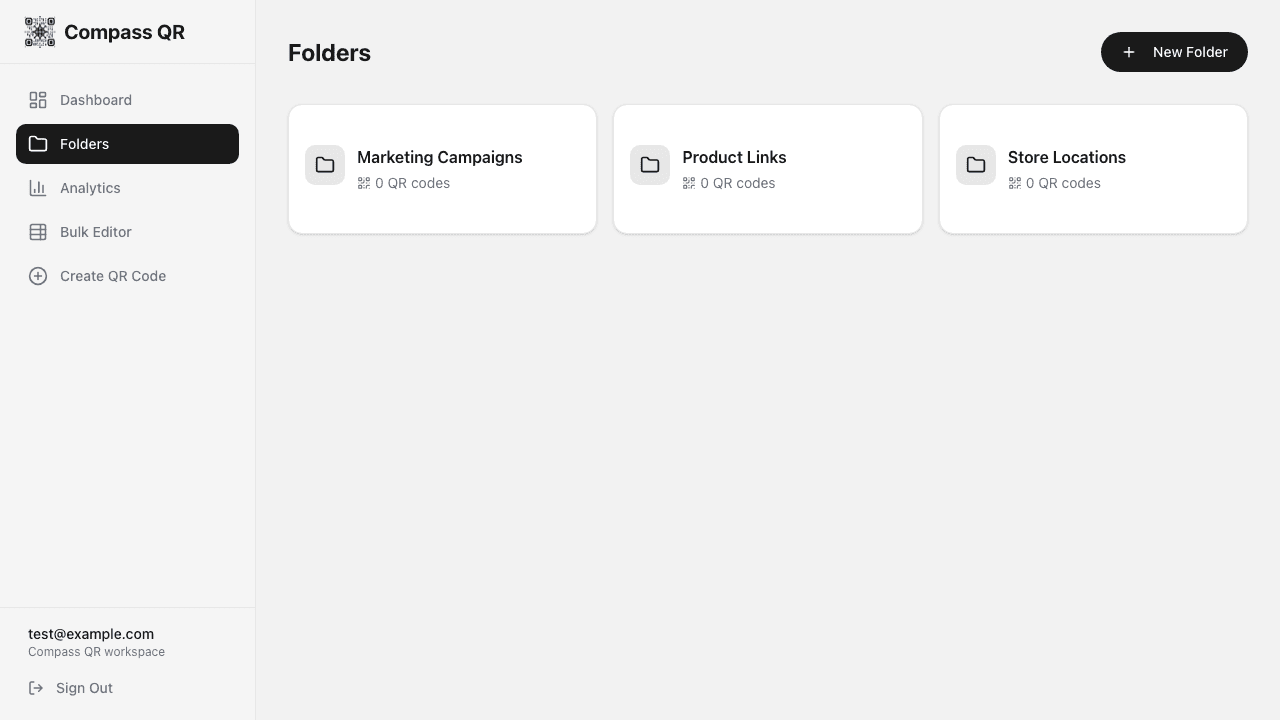
Creating Folders
- Navigate to Folders in your dashboard sidebar
- Click the New Folder button
- Enter a name for your folder
- Click Create Folder
Use descriptive names like "Restaurant Menu QRs", "Marketing Campaign 2024", or "Store Locations".
Managing Folders
Viewing Folder Contents
Click on any folder to see the QR codes inside. Each folder shows:
- Folder name
- Number of QR codes in the folder
- Quick access to all QR codes inside
Renaming Folders
- Hover over a folder to reveal the menu button
- Click the three-dot menu icon
- Select Rename
- Enter the new name and save
Deleting Folders
- Hover over a folder to reveal the menu button
- Click the three-dot menu icon
- Select Delete
- Confirm the deletion
Deleting a folder does not delete the QR codes inside. They will simply be unassigned and remain in your main QR code list.
Adding QR Codes to Folders
There are two ways to add a QR code to a folder:
From the Dashboard
- Find the QR code you want to move
- Click the three-dot menu on the QR card
- Select Move to folder
- Choose the destination folder
From Folder View
When viewing a folder, you'll see all QR codes assigned to it. Use the filter on the main dashboard to view QR codes by folder.
Filtering by Folder
On the main dashboard, use the Folder filter dropdown to show only QR codes from a specific folder. This helps you:
- Focus on a specific project
- Quickly find related QR codes
- Manage campaign-specific codes
Best Practices
- Organize by purpose - Group QR codes by their use case (menus, marketing, products)
- Use consistent naming - Establish a naming convention for folders
- Archive old campaigns - Create folders for past campaigns to keep things tidy
- Location-based folders - If you have multiple locations, create a folder for each
Folder Organization Ideas
By Campaign
- Spring 2024 Campaign
- Product Launch
- Holiday Promotion
By Location
- New York Store
- LA Store
- Online
By Type
- Menus
- Business Cards
- Product Pages
By Client
- Client A
- Client B
- Internal